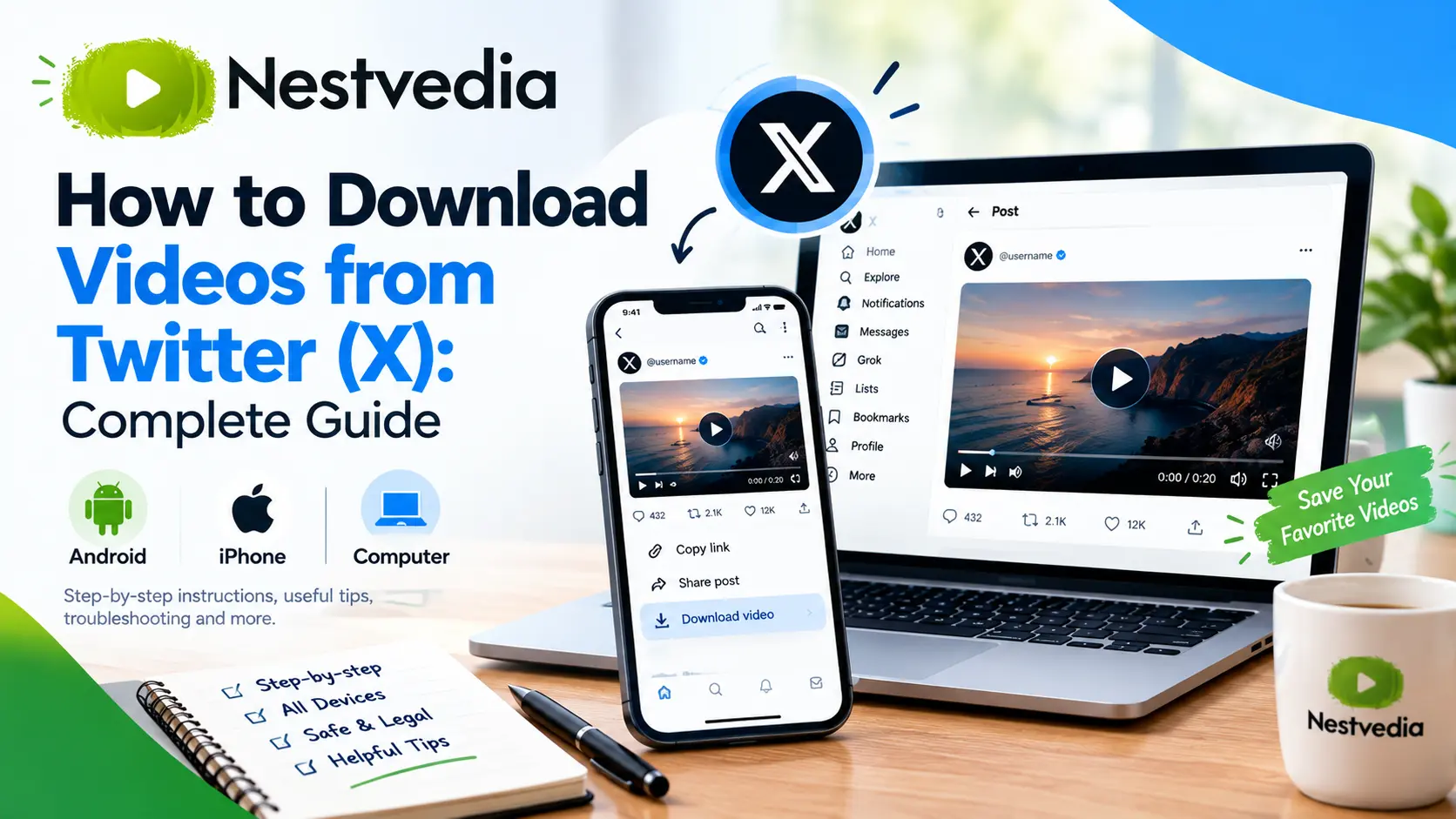
How to Download Videos from Twitter (X): Complete Guide
Want to download video from Twitter and save it for later viewing? X, formerly known as Twitter, contains millions of videos, including news clips, tutorials, sports highlights and entertaining short videos. However, saving a video to your device is not always straightforward because the available options can depend on the post, your device and the account's settings.
In this guide, Nestvedia explains how to save videos from Twitter (X) on Android, iPhone and computer. You will learn about built-in download options, how online video downloader tools work, how to troubleshoot common problems, and what to consider before saving or sharing someone else's content.
Whether you want to download a video from a tweet or keep a useful clip for personal reference, this guide will help you understand your options.
Download Twitter (X) Videos with Nestvedia
Want a convenient way to save eligible videos from X? Try the Nestvedia Twitter Video Downloader to explore available download options. Simply follow the tool's instructions and use it only for content you own, have permission to download, or are legally allowed to save
Can You Download Videos from Twitter (X)?

Yes, but the method depends on the video and the options available to you. X has offered a native video-download feature for eligible posts under certain conditions, but access can depend on subscription eligibility, account settings and platform changes.
If a post provides a download option, you can use that first. If it does not, third-party tools may offer another route, subject to the service's terms, the creator's rights and applicable law.
Before you begin, remember these points:
-
Not every video has a built-in download option.
-
Some posts may have restrictions set by the account owner.
-
A video being publicly viewable does not automatically mean you have permission to reuse it.
-
Avoid tools that ask for your X password or unnecessary account permissions.
How to Download Video from Twitter on Android
Android users can check for a built-in download option or use a reputable online service when permitted.
Method 1: Use the Available X Download Option
-
Open the X app on your Android phone.
-
Find the post containing the video you want to save.
-
Open the post's menu and check whether a video-download option is available.
-
If the option appears, tap it and follow the on-screen instructions.
-
Check your Downloads folder or Gallery, depending on where your device stores the file.
The option may not appear for every post or account. If it is unavailable, do not assume that the video can be downloaded through X itself.
Method 2: Use an Online Twitter Video Downloader
If you have permission to save the video and the tool supports the post, an online downloader may be an alternative.
-
Open X and find the relevant video post.
-
Tap Share and select Copy link.
-
Open your browser and visit a reputable Twitter/X video downloader, such as the relevant tool page on Nestvedia if available.
-
Paste the copied post link into the tool.
-
Follow the tool's instructions to check the available download options.
-
Select an appropriate format or quality if offered.
-
Once downloaded, locate the file in your browser's Downloads section or your device's file manager.
Safety tip: Do not install unfamiliar APK files or browser extensions just to save a video. A website that asks for your account password to process a public post should be treated with caution.
How to Download Twitter Videos on iPhone
On an iPhone, downloaded videos may be saved to the Photos app or Files app, depending on the method used. Start by checking whether X offers its own download option.
Method 1: Download Directly from X
X provides a native download feature for eligible posts to subscribers of its qualifying paid plans. The person who posted the video must also have downloads enabled.
Follow these steps:
-
Open the X app on your iPhone.
-
Navigate to the post containing the video.
-
Open the video and tap the three-dot menu.
-
Select Download video, if available.
-
Wait for the download to finish.
-
Check Photos or Files to locate the saved video.
If you cannot see the download option, the post may not be eligible. You can check the creator's download settings or use another method only if you have the necessary rights and permission.
Method 2: Save a Video Using Safari
If you are using an online downloader that supports the post, follow these general steps:
-
Open X and find the video post.
-
Tap Share and copy the post link.
-
Open Safari and visit a reputable video downloader.
-
Paste the URL into the provided field.
-
Follow the website's instructions to process the link.
-
If a legitimate download option is available, tap it.
-
Open Safari's Downloads list to locate the file.
-
Use the Share menu to save the video to Photos, if the file type and iOS options allow it.
The exact steps can vary between websites and iOS versions. Avoid suspicious pop-ups, unexpected profiles, configuration downloads or apps that request unnecessary access to your device.
How to Download Twitter Videos on a Computer
A desktop computer or laptop can make it easier to manage video files, particularly when you want to organise them into folders.
Method 1: Use X's Built-In Download Feature
-
Open X in your browser and sign in if required.
-
Find the post containing the video.
-
Open the video's menu.
-
Look for Download video.
-
If the option is available, select it and wait for the download to finish.
-
Open your browser's Downloads section or the Downloads folder on your computer.
Availability depends on X's eligibility requirements and the post's settings. X documents its video-download feature for certain posts, rather than every video on the platform.
Method 2: Use an Online Video Downloader
If the native option is unavailable, an online service may offer an alternative for content you are authorised to download.
-
Open the relevant video post on X.
-
Copy the post URL from your browser's address bar.
-
Visit a reputable downloader website.
-
Paste the URL into its input field.
-
Review the available output options.
-
Select the appropriate download option, if supported.
-
Check your Downloads folder to confirm that the file has saved correctly.
For a simpler workflow, you can use the Nestvedia Twitter Video Downloader: open the tool page, paste the post URL, and follow the steps shown there. Use the tool only where downloading is permitted, and never enter your X login details into a third-party downloader.
Comparison: Which Twitter Video Download Method Is Best?
|
Method |
Device |
Main advantage |
Main limitation |
|---|---|---|---|
|
X's built-in download |
Android, iPhone and supported desktop experiences |
Official download route |
Only eligible posts and qualifying accounts |
|
Online downloader |
Devices with a compatible browser |
May offer an alternative for supported links |
Availability, safety and quality vary |
|
Bookmark a post |
Android, iPhone and computer |
Easy to find the post later |
Does not save a separate video file |
|
Screen recording |
Devices with recording support |
Can capture playback when appropriate |
Quality may be lower; restrictions may apply |
Best option: Use X's own download feature whenever it is available and appropriate. If your goal is simply to watch the video later, bookmarking the post may be enough without creating another copy.
Why Can't I Download a Video from Twitter?
If your download does not work, check these common issues before trying another method.
1. The Download Option Is Missing
X limits native downloads to certain posts and qualifying subscribers. The uploader can disable downloads for eligible videos, and X's documented feature does not cover every post.
What to do: Check the post's menu and the current eligibility rules. If the option is absent, do not assume that your device is broken.
2. The Downloader Does Not Recognise the Link
Some tools support only certain public posts or URL formats.
What to do:
-
Copy the link from the original post rather than a search-result preview.
-
Make sure the URL is complete.
-
Check whether the post is still available.
-
Try again using a compatible browser.
-
Avoid services that ask you to bypass account restrictions.
3. The Video Does Not Appear in Photos
On iPhone, browser downloads may go to Files rather than Photos. On Android, the file may be stored in Downloads instead of the Gallery.
What to do: Open Files, your browser's Downloads list or your phone's file manager. If the file is there, use your device's share or save options to move it where appropriate.
4. The Video Has No Sound or Poor Quality
The original post may have limited audio, or a service may provide a lower-quality version.
What to do: Play the original post to check its audio and quality. If you are authorised to download it, choose the best available option supported by the service. Avoid assuming that an HD label guarantees original quality.
5. The Website Opens Pop-Ups or Requests Login Details
A downloader that redirects repeatedly, asks for your X password or requests an unrelated app installation may pose a security risk.
What to do: Close the website and do not enter your credentials. Choose a more reputable service, keep your browser updated and avoid installing unknown extensions.
Is It Legal to Download Videos from Twitter (X)?
Downloading a video and having permission to reuse it are two different things. A video may be publicly accessible, but its creator can still own the copyright.
Before you download or share a clip, keep these principles in mind:
-
Respect copyright: Download or reuse content you own, have permission to use, or are legally entitled to access.
-
Check the platform's rules: Follow X's Terms of Service and any applicable restrictions.
-
Protect your privacy: Do not download or redistribute private or sensitive content without appropriate permission.
-
Avoid unauthorised redistribution: Downloading a video does not automatically grant permission to repost, edit or use it commercially.
-
Choose safer tools: Avoid websites that request your password, install unknown software or promise access to restricted content.
FAQ's
1. How do I download video from Twitter without an app?
You can check whether X provides a built-in download option or use a compatible browser-based downloader for content you are authorised to save. You do not necessarily need to install another app.
2. Can I download videos from X without Premium?
X's built-in post-video download feature is limited to subscribers of qualifying paid plans and eligible posts. Other methods may be available for content you have permission to download, but third-party services are not official X features.
3. Why can't I download a video from a tweet?
The post may not support downloads, the uploader may have disabled the feature, or the video may no longer be available. If you're using an external tool, it may also be incompatible with the post's URL or content.
4. Can I download Twitter videos in HD?
Some videos and tools offer higher-resolution downloads, but the available quality depends on the original video and the service. Check the actual output rather than relying only on an HD label.
5. Does bookmarking a tweet download its video?
No. Bookmarking saves a reference to the post in your X account; it does not create a separate video file on your device.
Final Thoughts
Learning how to download video from Twitter becomes easier when you understand the options available on each device. Android users can check the X app or a compatible browser, iPhone users can look in Photos and Files, and computer users can check their browser's Downloads folder.
For the most straightforward experience, start with X's built-in download option whenever it is available. If you need another method, use a reputable service and respect the creator's rights.
At Nestvedia, our aim is to make online tools and digital tasks easier to understand. Use this guide to choose the method that suits your device while keeping safety, privacy and copyright in mind.
Continue reading