
A few days ago, two YouTube videos both stopped at 94%. Same number, twice, on two different videos. The progress bar just sat there, and the obvious conclusion was that something had broken.
It hadn’t. The downloads were in their last step — the part where the file gets prepared so it actually plays on your phone — and the bar wasn’t reporting that step honestly. It looked frozen. It wasn’t. We fixed the reporting the same day, so the bar now climbs through that final step instead of parking. But the pause itself was never a bug in the first place. It was work happening out of sight.
This post is about that bar: what each part of it means, why the end takes longer than the beginning, and how to tell the difference between “still working” and “actually stuck”.
What the progress bar is doing, stage by stage
A download is not one job. It is three, back to back, and the bar covers all of them.
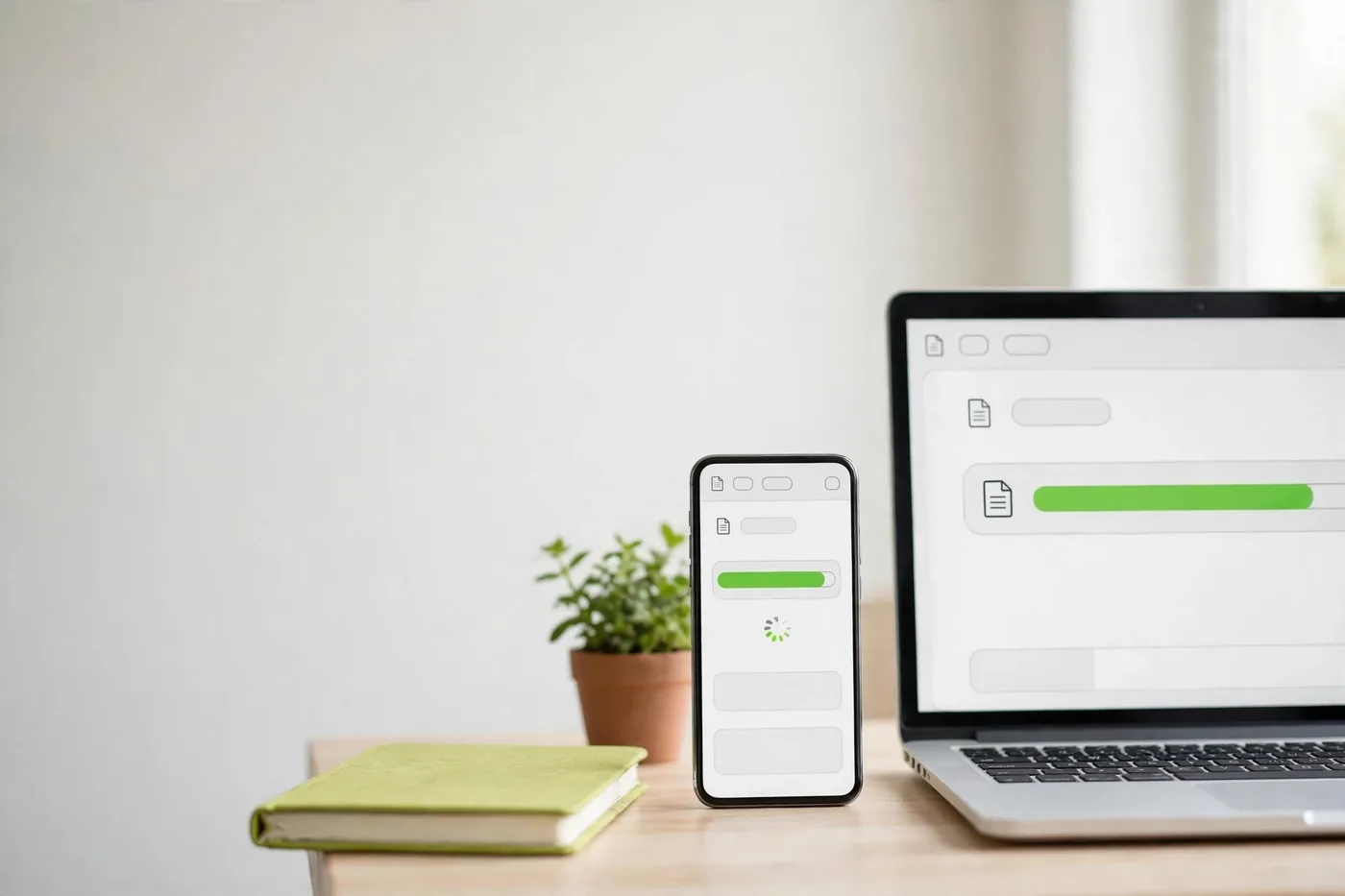
Connecting and fetching. The first few percent is the tool reaching the video and reading what is available. For a normal public video this is seconds. If the bar sits at a very low number for a long time, this is the stage that is struggling — usually the link, not your internet.
Downloading the video itself. This is the long middle stretch, where the file streams down. A short clip crosses it in seconds. A long video takes longer, because there is simply more file to move.
Preparing the file. This is the part people don’t expect. Once the video is down, the tool still has to make it playable: joining the video and audio together, and sometimes converting it into a format every phone and browser can open. That last step is the one that used to sit at 94% in silence. It now shows real, climbing numbers — but it still takes real time, especially on a long video. For a very long video, the tool now skips the conversion up front and hands you the original file instead, rather than making you wait for a step that was never going to finish in time.
One measured example, from our own testing: a 24-second vertical clip reached the final step after about 11 seconds and was ready to save after about 21. A short clip, end to end, in well under a minute. A 12-minute video is a different job entirely, and it will not behave like a 24-second one. Judge the wait by the length of the video, not by the last video you downloaded.
The three mistakes that turn a working download into a failed one
Most downloads that “fail” near the end were never failing. They were interrupted by one of these.
Tapping Save too early. The Save button is for a finished file. Tap it while the bar is still climbing and you get nothing useful — or nothing at all. Every Nestvedia tool page says the same thing in different words: wait for completion, then tap Save. On YouTube the page says it plainly — wait until the progress shows ready, then tap Save Video. That one habit fixes more failed downloads than any other change you can make.
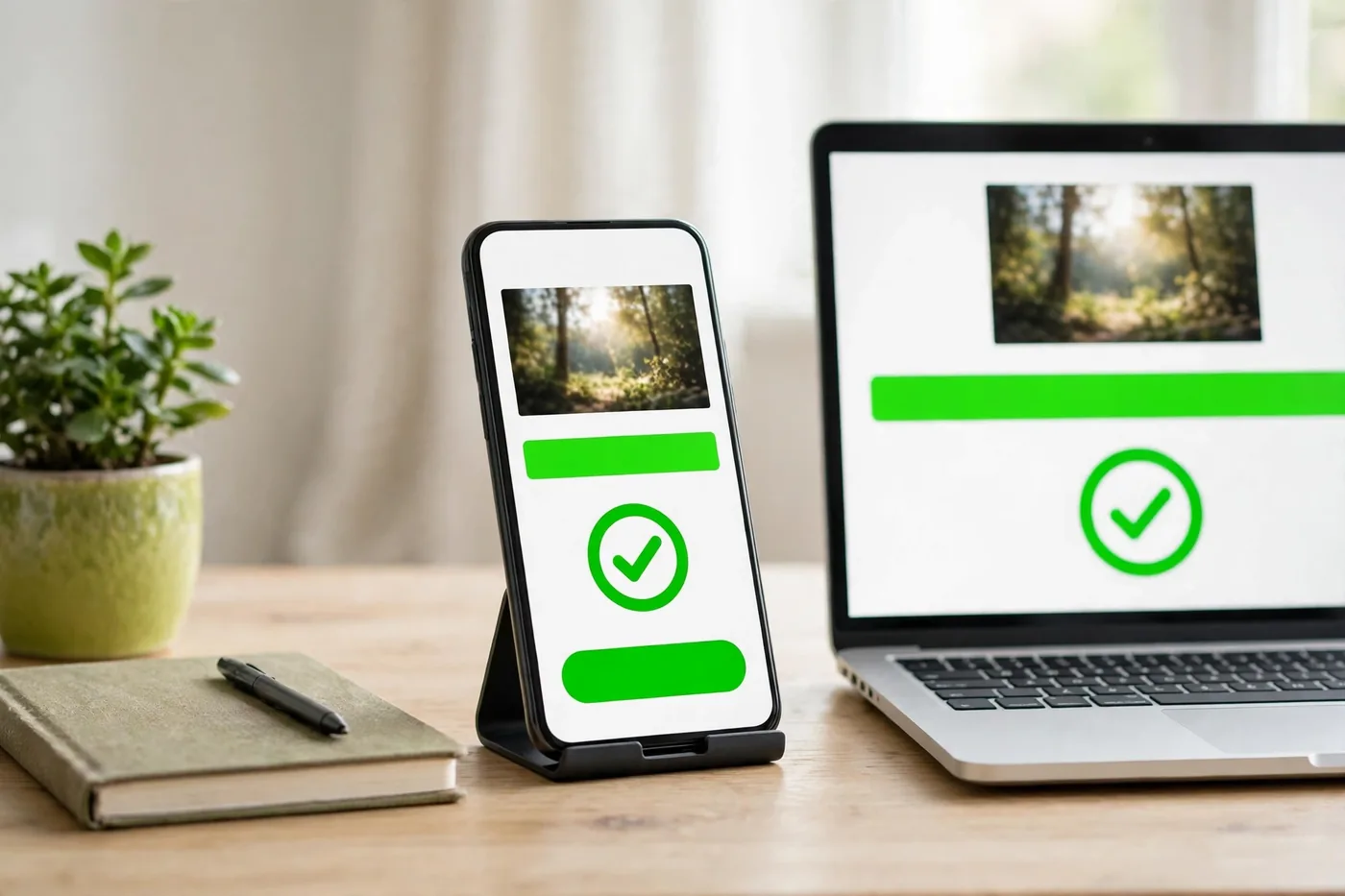
Refreshing the page mid-download. Refreshing does not speed anything up. It throws the job away and starts over from zero, and the new attempt has to repeat every stage the first one already finished. If the bar is moving, even slowly, leave it alone.
Closing the tab. The finished file’s Save button lives on that page. Close the tab before you tap it and the file is gone with it, even if the download itself completed fine on the other side.
None of these are exotic. They are the ordinary ways a download that was going fine ends up looking broken.
How to do it right, on your device
The steps are the same on every platform. The taps are not.
On Android. Copy the link from the app’s Share menu. Open Nestvedia’s downloader for that platform in Chrome, paste the link, and wait for the title and preview to load. Start the download, keep the tab open, and wait until it says ready. Then tap Save. The file lands in Downloads — check your file manager there, not just the gallery, if you can’t see it at first.
On iPhone. Copy the link the same way, from Share in the app. Paste it into the downloader in Safari, wait for the preview, start the download, and wait for ready before saving. A saved file on iPhone usually sits in Files or the browser’s Downloads, not straight in Photos — a “missing” video is very often just a file in the wrong folder.
On a computer. Copy the link from the address bar, or use Share then Copy link. Paste it on the tool page, wait for the preview, start the download, and save once the progress shows ready. Check the browser’s Downloads folder. The bigger screen is also where a long video’s final step is easiest to watch: the bar climbs, slowly, through the last stretch — and that slow climb is normal.
One thing that applies everywhere: use a fresh link. A link copied hours ago, especially a short one like youtu.be or fb.watch, can go stale. If a download fails right at the start, the first thing to try is opening the video again and copying the link a second time.
When waiting won’t help
Not every stuck bar is a patient bar. Here is how to tell.
It never gets past the first few percent. The tool is struggling to reach the video at all. Refresh the tool page once, paste a freshly copied link, and try again. If it still won’t start, the video itself is the problem — it may have been deleted, made private, or put behind a login since you last saw it. A video that needs a login to watch can’t be fetched by a tool that never asks for your password, and no amount of waiting changes that. Run the quick check: open the link in a private browser window, logged out. If it won’t play there, the download was never going to work.
It fails with an error instead of a number. “Could not download this video” at the start means the fetch itself failed — the source couldn’t be reached, or the video isn’t available in a form the tool can use. Re-run the preview with a fresh link. If the same error comes back on a video that plays fine in your browser, try again a little later; the source sometimes limits requests for a while.
It worked yesterday and stalls today. The video may have been re-uploaded, edited, or had its availability changed — or the source may be limiting requests for a while. Re-run the preview with a fresh link. If the same video now behaves differently, something about the source changed. Your tool did not quietly get worse.
The file downloaded but you can’t find it. On Android, check the Downloads folder in your file manager. On iPhone, check Files. On a computer, check the browser’s Downloads folder. Rename the file right away if you plan to keep it — a file called “video.mp4” is a file you will lose.
The file downloaded but won’t play. Check that it finished downloading completely — a file saved too early, before the bar showed ready, is often just an incomplete file. Re-run the download and wait for ready this time. If it still won’t play, try opening it in a different player before assuming the file is bad.
FAQ
How long should a download take?
It depends on the video, not on the tool. A short clip usually finishes in well under a minute. A long, high-resolution video takes longer — more file to move, and more work in the final preparing step. Judge it by the video’s length, and give a long video several minutes before deciding it is stuck.
The bar hasn’t moved in a while. Is it stuck?
Look at where it stopped. Near the end, a slow or briefly still bar is usually the preparing step doing its work — give it time, especially for a long video. At the very beginning, a bar that doesn’t move at all is more likely a link or source problem, and a fresh link is worth trying.
Does refreshing the page help?
No. It restarts the whole job from the beginning. Only refresh if the download hasn’t started at all — and then paste a fresh link before you try again.
Can I close the tab while it downloads?
Don’t. Stay on the page until it says ready and you’ve tapped Save. The Save button is on that page, and closing it loses the finished file.
Why does the same video take longer today than yesterday?
The source, the video, and the route between them all change. A video that was served from a finished copy yesterday may need a full fresh download today, and a long video’s final step takes longer than a short clip’s. Same link, different day, different wait — that’s normal.
Does a stuck download mean the video is private?
No. A private video fails much earlier — at the preview stage, before any progress bar appears. If you got a progress bar at all, the video was reachable, and the wait is about the file, not about access.
Do I need an account or an app for this?
No. The downloaders are free to use with no signup and no Nestvedia account, and they run in the browser — no app to install. The video itself still has to be publicly viewable, which is a separate question from whether you have an account.
Where to go next
If you want the full step-by-step for one platform, the existing guides cover each one: How to Download YouTube Videos, How to Download Videos from Facebook, How to Download TikTok Videos, How to Download Instagram Videos, and How to Download Videos from Twitter (X). The tool pages are the Nestvedia YouTube Video Downloader and the Nestvedia Facebook Video Downloader. And if the saved clip needs reframing afterwards — a wide video cut down for Reels or Shorts — the cropper guide walks through that: How to Crop a Video Online Free.
The habit to take away is a small one: when the bar slows down near the end, wait for the word ready. The last stretch is the file being made playable, not the download giving up — and the only thing that turns a slow finish into a failed one is tapping Save, refreshing, or closing the tab before it gets there.
Continue reading