How to Download YouTube Videos: Complete Guide
If you want to download YouTube videos for offline viewing, the best method depends on your device, location, and the options available for the video. YouTube offers official offline viewing through its app in supported regions and plans. However, saving a video inside the YouTube app is different from downloading a separate video file to your computer or phone.
In this complete guide, Nestvedia explains the available options for watching YouTube videos offline, how to find downloads on different devices, and what to do when an offline download is unavailable. You will also learn about video quality, common download problems, and copyright considerations so you can choose a suitable method.
Download YouTube Videos: What Are Your Options?
Before choosing a method, understand the difference between offline viewing and saving a video as a file. This distinction helps you select the right approach and avoid unreliable services.
Here are the main options to consider:
-
YouTube's official download feature: In supported locations, eligible videos can be downloaded for offline viewing through the YouTube app. Availability depends on the video, location, and account or subscription requirements.
-
Downloading your own videos: If you uploaded the video, YouTube Studio may provide an option to download your own content.
-
Offline viewing on a computer: YouTube Premium users may have access to offline downloads on supported desktop browsers and in supported regions.
-
Saving a link for later: You can add a video to Watch Later or another playlist. This makes it easier to find the video again, but it does not save a separate video file to your device.
Importantly, not every video supports offline viewing. Moreover, the available options may vary by device and account.
How to Download YouTube Videos Using Official Methods
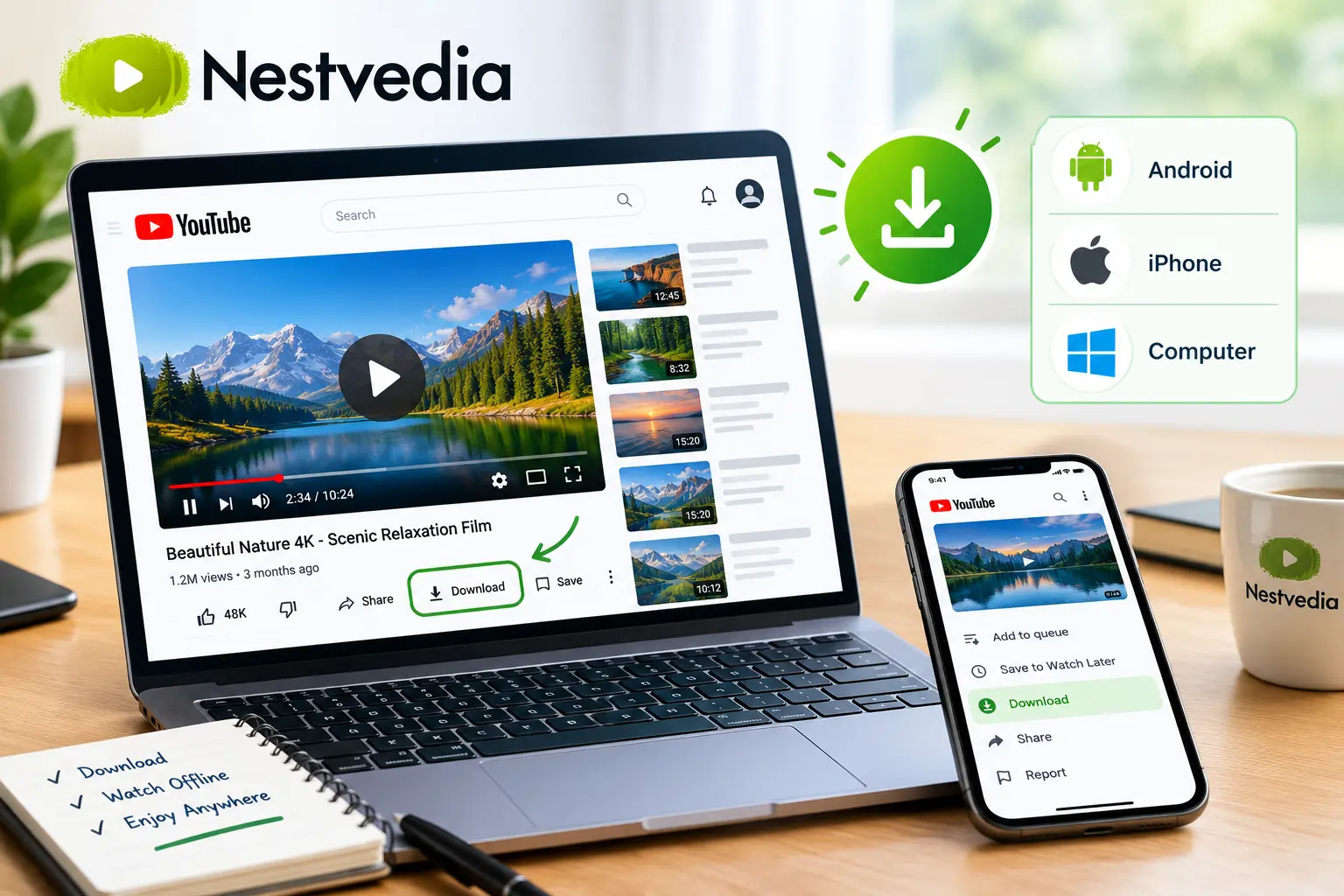
The safest starting point is YouTube's own download functionality. Follow the instructions for your device below.
How to Download YouTube Videos on Android
If you use an Android phone, check whether the video has an official Download option.
-
Open the YouTube app on your Android device.
-
Find the video you want to watch offline.
-
Open the video and look for the Download option beneath the player or in the available menu.
-
Select Download if the option is available.
-
Choose a video quality if YouTube offers a choice.
-
Wait for the download to finish.
-
Open the YouTube app's Downloads section to watch the video offline.
Keep in mind that an offline download inside YouTube usually remains accessible through the app rather than appearing as a regular MP4 file in your Gallery. Some downloads may also require periodic internet access to verify availability.
How to Download YouTube Videos on iPhone
iPhone users can follow a similar process using the official YouTube app.
-
Open YouTube on your iPhone.
-
Search for the video you want to watch.
-
Open the video and check for the Download option.
-
Tap Download if the video and your account are eligible.
-
Select a quality, if prompted.
-
Wait for the download to complete.
-
Find the video in the app's Downloads section.
If the Download option does not appear, it may not be available for that video, account, or location. Check YouTube's current feature availability before trying another method.
How to Download YouTube Videos on a Computer
You can also check for official offline viewing on a computer.
-
Open YouTube in a supported browser.
-
Sign in to the account you want to use.
-
Open the video you want to watch.
-
Look for the Download option below the video, if available.
-
Select the option and choose a quality if prompted.
-
Once the download finishes, use YouTube's Downloads section to access it.
The availability of computer downloads can depend on YouTube Premium, your country, browser support, and video eligibility. If you cannot see the Download option, check YouTube's official help information for your account and device.
How to Download Your Own YouTube Videos
If you uploaded a video to your own channel, YouTube Studio provides an official way to download it as an MP4 file. This is different from downloading someone else's video for offline viewing.
Follow these steps:
-
Open YouTube Studio and sign in.
-
Select Content from the left-hand menu.
-
Find the video you want to save.
-
Open the video's menu and select Download, if available.
-
Locate the downloaded file on your computer.
YouTube's help documentation states that your uploaded videos may be available as MP4 files in 720p or 360p, depending on the video. Some videos may not be downloadable because of copyright or Community Guidelines issues, or other restrictions.
If you want to download all your own uploaded videos, you can also explore Google Takeout.
YouTube Download Methods Compared
The right method depends on whether you want to watch offline or need an actual video file.
|
Method |
Best for |
Separate video file? |
|---|---|---|
|
YouTube app Downloads |
Watching eligible videos offline |
Usually no |
|
YouTube Premium on a supported computer browser |
Offline viewing on a computer |
Usually no |
|
YouTube Studio |
Saving your own uploaded videos |
Yes, when available |
|
Watch Later playlist |
Finding videos again |
No |
YouTube's offline downloads are stored for playback within YouTube, while Studio can provide downloadable files for your own eligible uploads.
Common Problems When You Download YouTube Videos
Sometimes the download option is missing or a video does not play offline. Try these checks before assuming the feature is broken.
The Download Button Is Missing
The option may depend on your country, account, subscription, browser, or the video's eligibility. First, confirm that you are signed in to the correct account. Then check whether offline downloads are supported for that video and device.
The Download Is Stuck
Check your internet connection and available device storage. If the connection drops, reconnect and check whether the download resumes. You can also try again on a stable Wi-Fi network.
The Video Does Not Appear in Gallery or Photos
This is normal for official YouTube offline downloads. They are generally stored for playback inside the YouTube app, not as standard files in your phone's Gallery, Photos, or Files folders.
The Video Will Not Play Without Internet
Make sure the download has completed and open it from the YouTube Downloads section. You may also need to reconnect to the internet periodically so YouTube can verify that the video remains available for offline playback.
Is It Safe and Legal to Download YouTube Videos?
The safest approach is to use YouTube's built-in download feature or download your own eligible uploads through YouTube Studio.
Before using any third-party downloader, consider the following:
-
Copyright: A publicly viewable video is not automatically free to copy, republish, or distribute.
-
Permission: Obtain the creator's permission when required, especially if you intend to reuse or publish the video elsewhere.
-
Terms of service: YouTube restricts downloading content unless it is expressly permitted by the service, allowed by applicable law, or authorised by the relevant rights holders.
-
Privacy and security: Avoid websites that ask for your Google password, require suspicious software, or display misleading download buttons.
-
Private content: Do not attempt to bypass privacy settings or access restrictions.
For most users, official offline viewing is the simplest choice. If you need a reusable video file, start with your own uploads or content for which you have the necessary rights and permission.
Download Videos More Easily with Nestvedia
Looking for a simple way to access online video tools? Visit Nestvedia’s YouTube Video Downloader tool page to explore the available options and learn how to use them. Always respect YouTube’s terms of service and download only content you own, have permission to use, or are legally allowed to download.
FAQ's
Can I download YouTube videos for free?
Some videos can be downloaded for offline viewing through YouTube's official mobile feature in supported regions. Other videos or devices may require a qualifying subscription. Availability varies by account and video.
Where are downloaded YouTube videos stored?
Official offline downloads are usually stored inside the YouTube app and cannot be opened as regular video files in another media player. Your own eligible uploads downloaded through YouTube Studio can be saved as MP4 files.
Can I download YouTube videos on iPhone and Android?
Yes, where YouTube's official offline-download feature is available for your account and the video. Open the video in the YouTube app, select Download if shown, and access the completed download through the app.
Can I download YouTube videos in MP4 format?
YouTube Studio can provide MP4 downloads of your own eligible uploads. For other people's content, use options authorised by YouTube or the rights holder rather than assuming every video can be saved as an MP4 file.
Why can't I download a YouTube video?
The video may not support offline viewing, your account may not meet the requirements, or the feature may not be available in your region or browser. Check your account, internet connection, storage space, and YouTube's current download options.
Final Thoughts
Learning how to download YouTube videos starts with choosing the right method for your device and purpose. YouTube's official offline feature is useful for watching eligible videos without an internet connection, while YouTube Studio can help you save your own uploaded content as a video file.
Before you start, check whether the Download option is available, confirm that the video has finished downloading, and make sure you understand where the file will be stored. Most importantly, respect creators' rights, privacy, and YouTube's terms when saving or reusing content.
For more useful online tools and practical digital guides, explore Nestvedia.
Continue reading