You paste a link, the preview loads, and the quality list stops at 720p. Yesterday, a different video offered 1080p without any fuss. Same tool, same phone, same afternoon — so the first thought is usually that something broke.
It probably didn't. The picker is not a menu of everything you wish the video was. It is a list of what that particular upload actually contains, as YouTube exposes it. Once you see it that way, most of the confusion disappears — and the few cases that are real problems get much easier to spot.
The one sentence that explains most of it
A downloader can only save the detail that is already in the source file. If the creator uploaded a sharp, high-resolution master, the picker has high options to show you. If they uploaded a small, soft file — an old phone clip, a screen recording saved at a low setting, a video from the days when 360p was normal — then 360p or 480p may be the ceiling, and no setting, retry, or different tool can invent the missing detail back.
Nestvedia's own tool page puts it the same way: it requests the highest practical quality available from the public source for that video, and the exact resolution depends on what the uploader published and what the source exposes. That is not a dodge. It is the whole mechanism, stated plainly.
Think of it like a photocopy. A crisp original photocopies crisply. A faded original photocopies faded, no matter how good the copier is. The picker is showing you the original, not deciding how good it should be.
Three videos, three different lists — and all three are normal
The old upload. A tutorial from ten years ago tops out at 360p. That was a perfectly respectable upload quality at the time, and the creator never replaced the file. Nothing is wrong with your link.
The phone Short. A vertical Short shot on a modern phone offers a decent resolution, and the saved file keeps its vertical framing when that framing is available. It may still not offer the same top option as a long, edited video — Shorts and long videos are published differently, and the picker reflects that.
The new, properly edited video. A recent tutorial, edited on a computer and uploaded in high resolution, shows the full range up to the highest option the source exposes. This is the video people compare everything else against, which is exactly why the other two feel broken when they are not.
Same tool, three honest answers. The difference was never the tool. It was the upload.
How to pick, on your device
The steps are short, but one of them matters more than the rest: wait for the preview to finish loading before you choose. Picking in a hurry, before the tool has read what the video actually offers, is how people end up saving the wrong thing and blaming the picker.
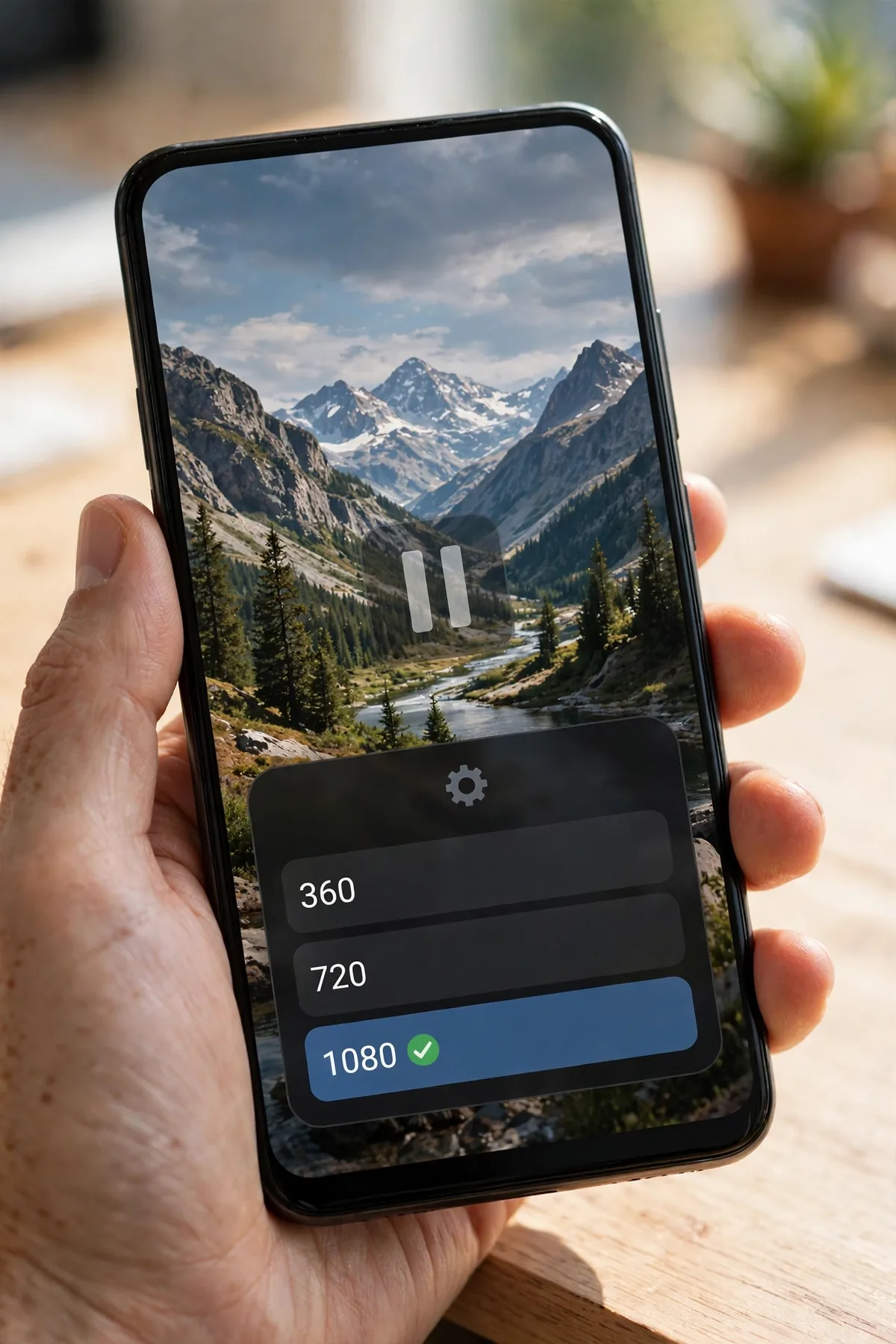
On Android. Open the video in the YouTube app, tap Share, then Copy link. Open Nestvedia's YouTube Video Downloader in Chrome, paste the link, and wait for the title and preview to load. Choose an available quality, run the download, wait until the progress shows ready, then tap Save. The file lands in Downloads — check your file manager there, not just the gallery, if you cannot see it at first.
On iPhone. Copy the link the same way, from Share in the YouTube app. Paste it into the downloader in Safari, wait for the preview, pick your quality, and wait for ready before saving. A saved file on iPhone usually sits in Files or the browser's Downloads, not straight in Photos — a "missing" video is very often just a file in the wrong folder.
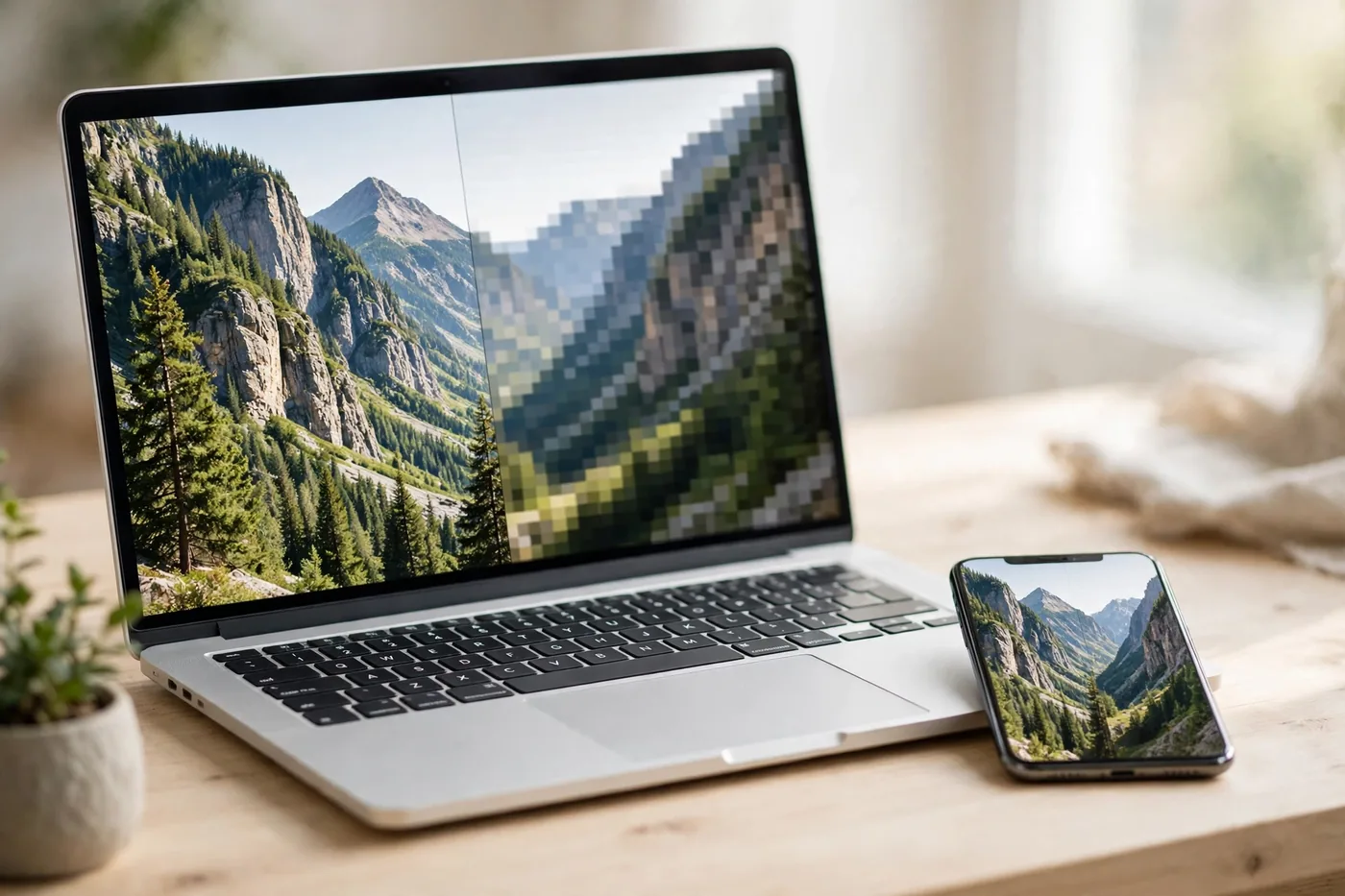
On a computer. Copy the link from the address bar, or use Share then Copy link. Paste it on the tool page, wait for the preview, pick a quality, and save once the progress shows ready. Check the browser's Downloads folder. The bigger screen is also where low resolution shows up most: a 360p file that looked fine on a phone can look soft on a laptop, because the same pixels are being stretched further. That is the source showing, not a download going wrong.
A practical rule for choosing: the highest option is not automatically the right one. A long tutorial at the top quality can be a large file on a phone that is already short on storage, and it will eat mobile data if you are not on Wi-Fi. If you are only going to watch it on your phone, the middle option is often indistinguishable — and it downloads faster and takes up less room. Save the top option for the videos you will actually watch on a big screen or keep for a long time.
What the picker cannot do
This is worth saying outright, because other sites will not:
- It cannot turn a 360p upload into 1080p. Upscaling a small file just makes a bigger blurry file.
- It cannot fetch a private video, an age-restricted clip, a members-only video, or paid content. Those need a signed-in session, which Nestvedia does not use. If the video needs a login to watch, the quality list is not your problem — access is.
- It cannot download a live stream while it is live. Wait until the stream is published as a normal video, then use that link.
- It cannot turn a playlist link into a set of downloads. Open the single video first and copy its link, not the playlist page.
- It cannot give you audio only. The tool page currently focuses on video file downloads, and an MP3 converter is planned rather than live. For now, save the video and extract the audio locally if you need an MP3.
And one more, because it comes up constantly: no, you do not need a YouTube Premium subscription to use the Nestvedia tool. Premium's own offline feature inside the YouTube app is a separate thing.
Troubleshooting: when the list really does look wrong
Work through these in order. Most "broken picker" reports end at step one or two.
The list looks shorter than you expected. First, ask whether the video itself is the limit. An old or low-resolution upload will simply not offer more. Compare with a recent, well-produced video from the same channel if you want a quick sanity check — if that one offers more, your original video was the ceiling.
The preview never loads, or the list never appears. Refresh the tool page once and paste a freshly copied link. Short youtu.be links can go stale, and a link copied from a playlist page will not behave like a single-video link. Copy the single video's link and try again.
You tapped Save too early. Wait for the progress to show ready before saving. Tapping Save before the file is ready is a common, ordinary failure — not a quality problem at all.
The file downloaded but looks worse than on YouTube. Check which quality you actually picked, and check what the video offers at source. If the top available option was 480p, then 480p is what you have, and it will look softer on a big screen than it did in the YouTube player on your phone. Re-downloading the same link at the same setting will give you the same file.
It worked in high quality yesterday and does not today. The video may have been re-uploaded, edited, or had its availability changed, or the source may be limiting requests for a while. Re-run the preview with a fresh link. If the list is now shorter, something about the source changed — your tool did not quietly get worse.
The video will not load at all. Run the logged-out test from common sense: if the video does not play in a browser without signing in, it is private, gated, or removed, and no quality setting will fix that. Use a public, unrestricted upload instead.
FAQ
Can I download every YouTube video in 1080p?
No. The picker lists what the uploader published and what the source exposes. Some videos genuinely top out lower, and HD is never guaranteed on every video.
Can I upgrade a low-quality video to HD after downloading?
No. A file cannot gain detail it never had. Any site promising to "enhance" a 360p download into true 1080p is selling you a bigger file, not a sharper video.
Is the highest quality always the best choice?
Not always. It is the sharpest, but also the largest. On a phone with limited storage, or on mobile data, a middle option is often the smarter pick for something you will only watch on that phone.
Why does the same channel's videos offer different qualities?
Because the uploads differ. A video from this year and a video from ten years ago were made with different cameras, different editing settings, and different upload standards. The channel name does not set the quality — each upload does.
Do Shorts work the same way?
Public Shorts links can be processed when they play without forcing a login, using Share then Copy link from the Shorts player. Vertical framing is preserved in the saved file when available.
Can I download just the audio?
Not with this tool right now. It focuses on video file downloads, and an MP3 converter is planned. Save the video and extract audio locally if you need an MP3 in the meantime.
Do I need YouTube Premium?
No. Nestvedia is a separate free web tool and does not need a Premium subscription.
Can I repost a video I downloaded?
Only with the creator's permission. Saving a file for personal offline viewing is not the same as owning it or having the right to publish it elsewhere. YouTube's terms and copyright still apply.
Where to go next
If you want the full step-by-step for the tool itself, the existing guide covers it: How to Download YouTube Videos: Complete Guide, and the tool page is the Nestvedia YouTube Video Downloader. If the saved clip needs reframing afterwards — say, a wide video you want to cut down for Reels or Shorts — the cropper guide walks through that separately: How to Crop a Video Online Free.
The habit to take away is a small one: before you judge the download, judge the upload. Check what the video actually offers, pick the option that fits the screen you will watch it on, and wait for ready before you tap Save. Most of the time, the picker was telling the truth all along.
Continue reading